
HELP / PUBLISHING
Embed a widget on your site
A widget pulls from your approved testimonials, so once it's embedded the page updates itself as you approve more.
1 MIN READ
A widget is the piece you actually put on your site. It pulls from your approved testimonials, so once it is embedded you never touch the code again — approving a new testimonial updates the page on its own.
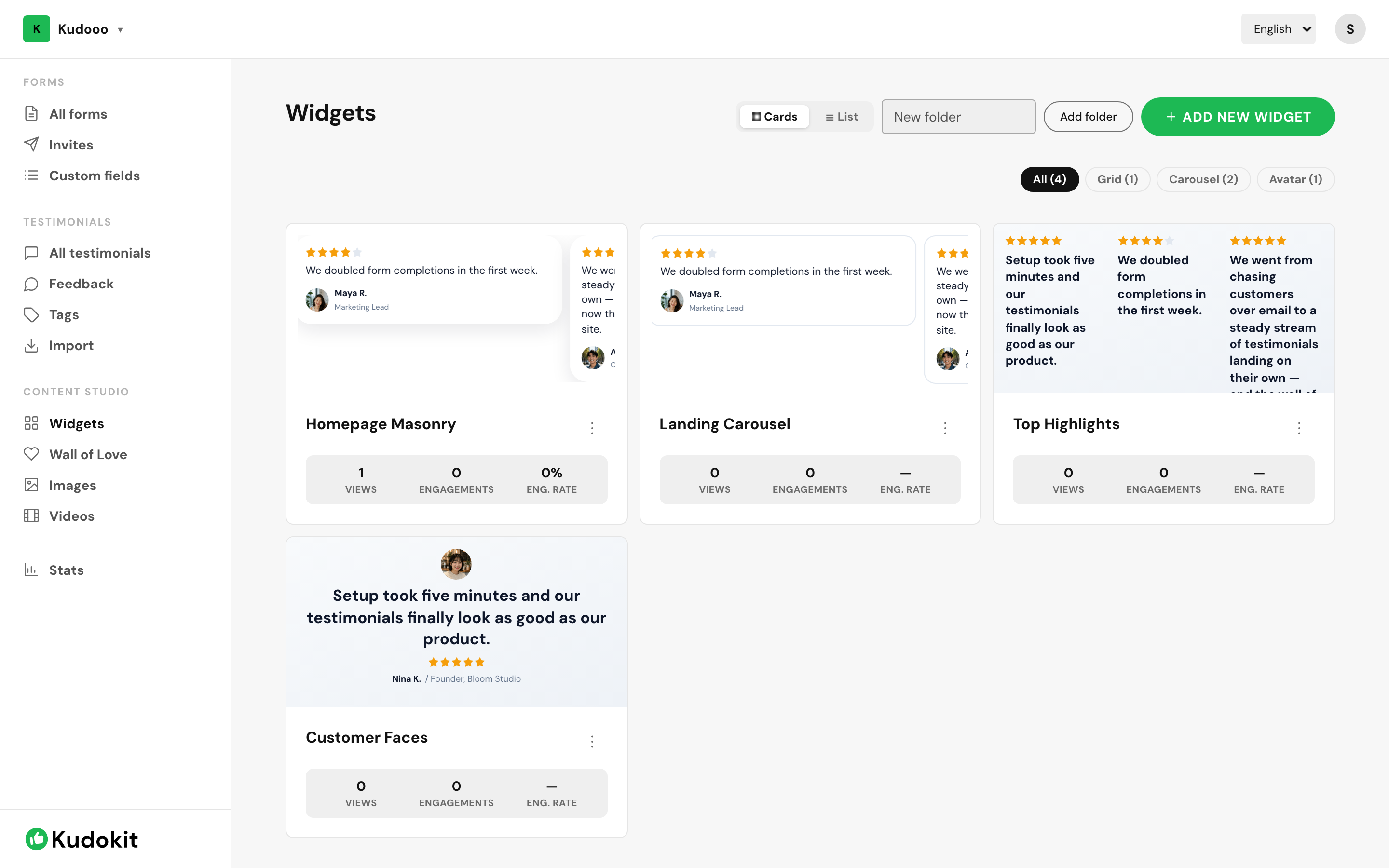
Create one
- Open Widgets under Content Studio and click Add new widget.
- Choose a layout. Grid and masonry suit a page section, carousel suits a narrow strip, avatar layouts suit a row near a call-to-action.
- Pick which testimonials it draws from — everything approved, or a specific tag.
- Save, then copy the embed code.
Paste it into your site
The embed is a small snippet you paste where you want the testimonials to appear. Anywhere you can add HTML works: a CMS block, a landing page builder, a theme template.
The loader is under 10 KB and does not block the rest of the page, so it will not cost you page speed.
Make sure search engines can read it
Turn on SEO mode. It ships real, crawlable HTML alongside the widget, so your testimonials count as content on the page rather than being invisible to search engines. This matters more than it sounds — testimonials are exactly the wording people search for when deciding whether to buy.
Watching whether it works
Each widget card shows views, engagements and engagement rate. A widget with high views and near-zero engagement is usually in the wrong place — proof works best next to a decision, not parked on a page of its own.
The Kudokit badge
Widgets on the Free plan carry a small "Powered by Kudokit" mark. Starter and Pro remove it.
Related
Support
Still stuck? Email support.
A human replies — usually within a few hours.