
HELP / MANAGING
Organise testimonials with tags
Tags turn a pile of testimonials into something you can actually search, and let a widget show only what fits the page.
1 MIN READ
One tag applied as you approve saves an afternoon of retrospective sorting later. Tags are the difference between having 300 testimonials and being able to use 300 testimonials.
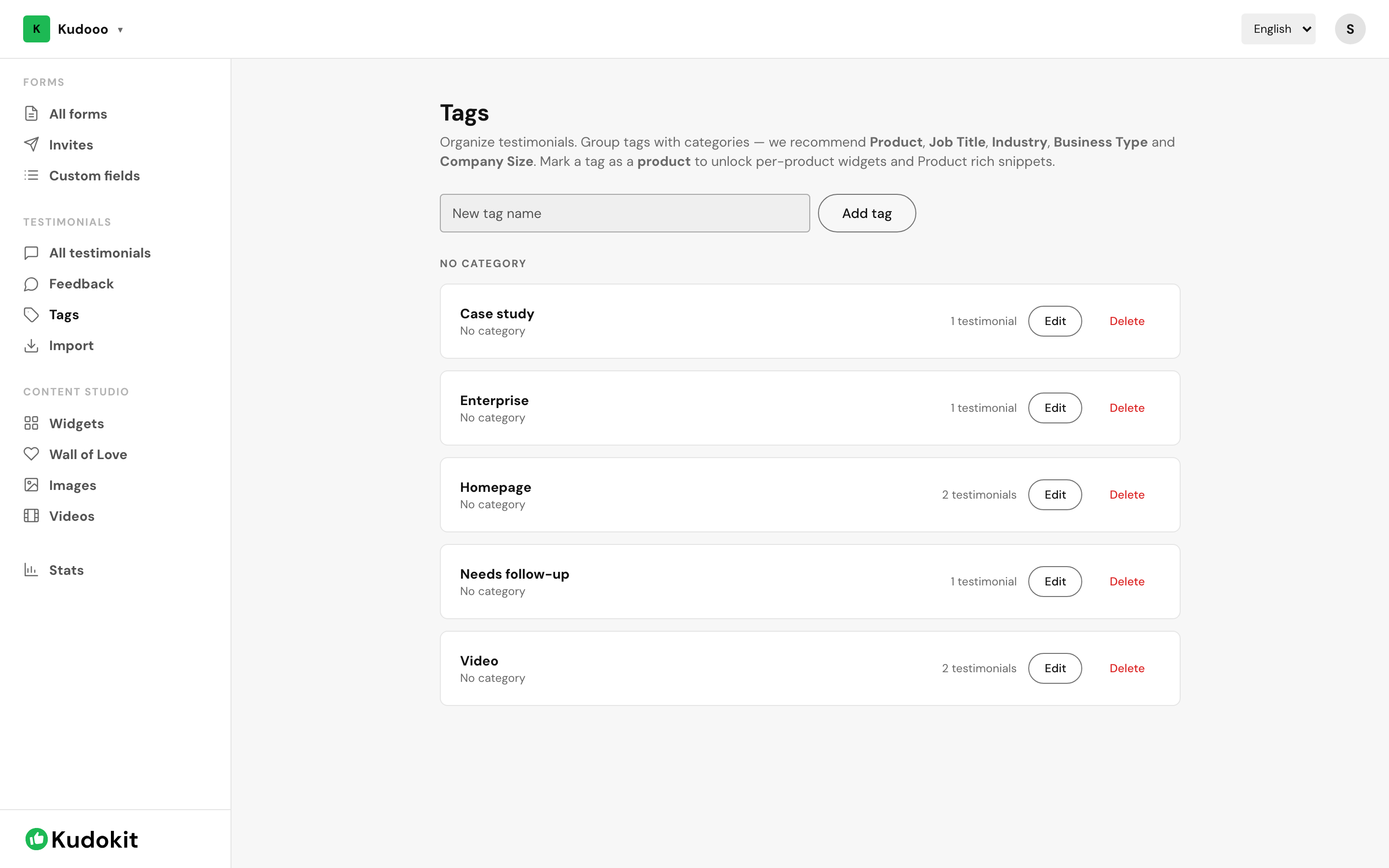
Create tags
- Open Tags under Testimonials.
- Add a tag and pick a colour so it is recognisable in the inbox at a glance.
- Apply it from any testimonial using + tag.
Tags that earn their keep
- By destination — "Homepage", "Pricing page". A widget can then be pointed at exactly one.
- By theme — what the customer actually praised, so you can answer a specific objection with a specific quote.
- By state — "Needs follow-up" for the ones you want to come back to.
Product tags
A tag can be marked as a product and carry its own image and URL, which is what lets you show reviews of one specific item on that item's page.
Limits
The Free plan includes 5 tags; Starter and Pro are unlimited. Five is enough for destination tags, so start there if you are on Free.
Related
Was this helpful?
Support
Still stuck? Email support.
A human replies — usually within a few hours.