
HELP / COLLECTING
Send email invites
Invites ask specific customers for a testimonial with a tracked link, so you know who was asked and who replied.
1 MIN READ
An invite is an email asking one specific customer for a testimonial, with a tracked link. Unlike sharing a form link publicly, invites tell you who was asked and who replied.
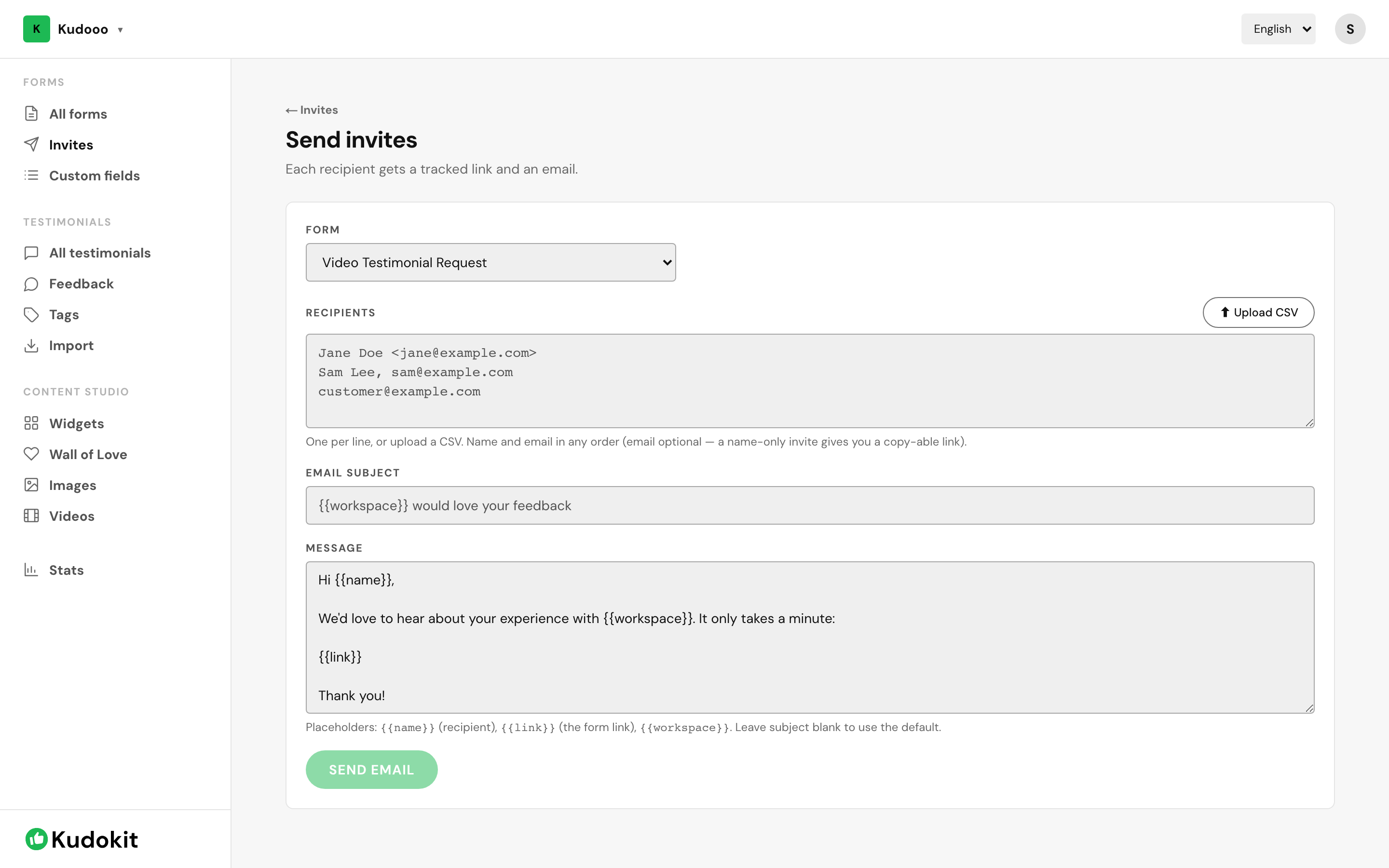
Send a batch
- Open Invites in the sidebar and click Send invites.
- Pick which form the invite should point at.
- Add your recipients — one per line, or upload a CSV.
- Edit the subject and message if you want. Leave the subject blank to use the default.
- Send.
Recipient formats
Name and email can go in any order, and several formats work:
Jane Doe <jane@example.com>Sam Lee, sam@example.comcustomer@example.com
The email is optional. A name-only invite does not send anything — it gives you a copy-able link instead, which is useful when you are going to send it yourself over chat or WhatsApp.
Personalising the message
Three placeholders are filled in per recipient:
{{name}}— the recipient's name{{link}}— their tracked form link{{workspace}}— your workspace name
Keep the message short. The invite has one job — getting the click — and a long email works against that.
Track what happened
The Invites page lists every invite you have sent, one row per recipient, with a status badge — Not sent, Sent, Opened or Submitted — plus actions to copy the link, get a QR code, resend, send a reminder, or delete. Four totals sit at the top: Total, Opened, Submitted, and Conversion, the share of invites that turned into a testimonial.
Monthly limits
Invites are capped per month and the allowance resets on the 1st. The Free plan does not include email invites; Starter includes 200 a month and Pro 2,000. Sharing a form link directly has no limit on any plan, so if you are on Free, share the link rather than inviting.
Related
Support
Still stuck? Email support.
A human replies — usually within a few hours.