
HELP / COLLECTING
Create your first collection form
A collection form is the page your customer fills in. Here's how to create one, share its link, and read the numbers on it.
3 MIN READ
A collection form is the page your customer actually fills in. It has its own link, so you can share it anywhere — in an email, on social, or as a QR code on a receipt — and it works without the customer creating an account.
Create the form
- Open All forms under Forms in the sidebar.
- Click New form in the top right.
- Give it a name you will recognise later — the name is internal, not shown to customers.
- Choose what you want back: text, image, video, or any combination.
- Save. The form is live immediately.
The four editor panels
Opening a form takes you into its editor, with four panels down the side:
- Templates — starter styles. Tap one to restyle every page and the whole Design panel at once; nothing changes until you hit Save.
- Editor — the page flow itself: Welcome, Star rating, Feedback, a choice of testimonial format, the testimonial page, Contact, Consent, Submit and Thank you. Add, remove, reorder or turn off any page that is not fixed in place.
- Design — colours (primary, button, button text, background — solid or gradient), your logo, the rating icon (star, heart, thumb, or Auto to match your Brand Kit), and heading/body fonts.
- Settings — the form's link, Auto-approve (skip the inbox and publish the moment someone submits), the thank-you email, which tags a submission gets automatically, the form's language, a reward for whoever submits, and Delete form.
Design and most of Settings inherit from your Brand Kit until you override them here, so setting that up first means less to configure on every form afterwards.
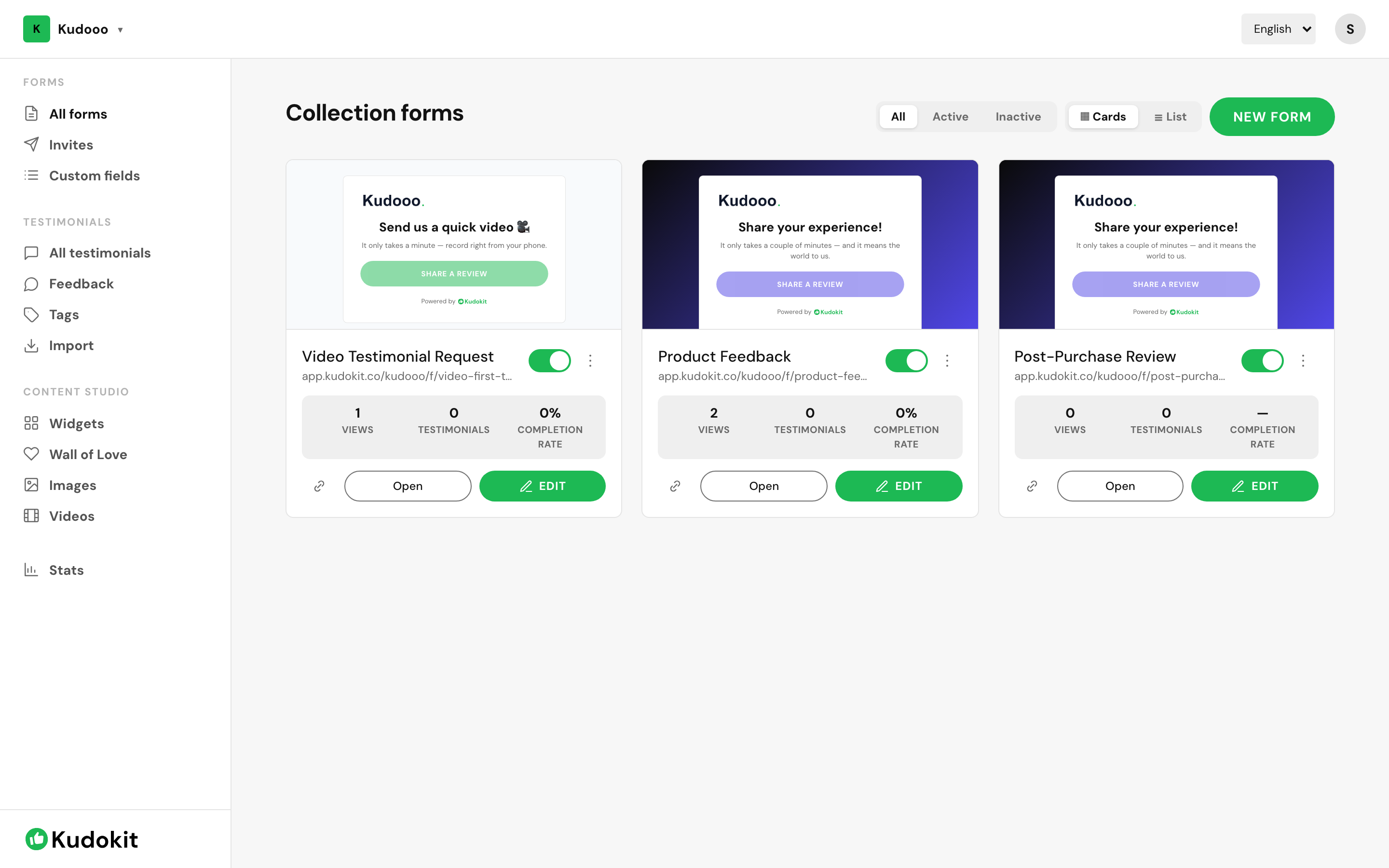
Each card shows the form's public URL, whether it is active, and three numbers: views, testimonials collected, and completion rate. A low completion rate against high views usually means the form is asking for too much — try cutting a question, or turning one off in the Editor panel.
Share it
Use the link icon on the card to copy the form URL, or Open to see exactly what the customer sees. The URL follows the pattern app.kudokit.co/your-workspace/f/form-name.
The same link works as a QR code, so a printed card on a table or a receipt gets you testimonials from people who never open your emails.
Turning a form off
The toggle on each card deactivates a form without deleting it. Anyone visiting the link sees that it is closed, and the testimonials you already collected stay exactly where they are. Use this for seasonal campaigns rather than deleting and rebuilding.
How many forms you can have
The Free plan includes 3 collection forms. Starter and Pro are unlimited. If you are on Free and want a different form per campaign, deactivating an old one does not free up a slot — you will need to delete it or upgrade.
Related
Support
Still stuck? Email support.
A human replies — usually within a few hours.